
Android
Google Maps brings Android 16’s live updates to life

Android 16 is coming soon, and one of its coolest tricks is called Live Updates. This feature makes important notifications—like progress updates—stand out on your phone’s status bar, lock screen, notification area, and always-on display. Google teased it back in January, but it wasn’t ready for testing until the latest Android beta dropped. Now, with Android 16 Beta 2.1 out, Live Updates is starting to shine—and Google Maps is the first app to jump on board.
Last week, Google rolled out Android 16 Beta 2.1. It’s a small update meant to fix bugs, not add big stuff. But surprise! It quietly switched on Live Updates, at least partway. I tested it with a demo app I’d used before, and its notifications popped up as little chips in the status bar. They also showed up big and bold in the notification panel—above chats but below music controls—so you can’t miss them.
Google Maps is in on it, too. I checked it out on my Pixel with Beta 2.1 and the newest Maps version. Users noticed it first, and I confirmed it works. The app’s status bar chip shows stuff like how long until your next turn and when you’ll arrive. It might even give more navigation tips, though I haven’t seen them yet. One catch: if the text gets too long, Android 16 trims it. That’s especially true if multiple apps use Live Updates since space runs out fast on phones with centered camera cutouts.
The Maps chip looks familiar—it’s got the app’s usual green color and navigation icon, so you know it’s Maps at a glance. Tap it, and a quick panel drops down with the full notification—no need to swipe the whole thing open. There’s a hiccup, though. On the always-on display, both the demo app and Maps notifications show up tiny, not big and clear like they should.
Last month, I showed how Live Updates could glow as full outlines on that screen, unlike regular notifications that stay as icons. That part’s probably coming in the next beta. When it does, following Google Maps’ turn-by-turn directions will be a breeze!

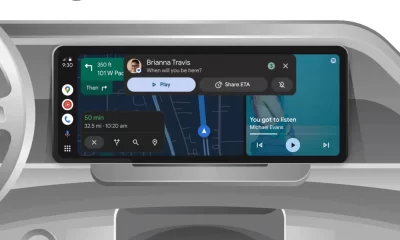




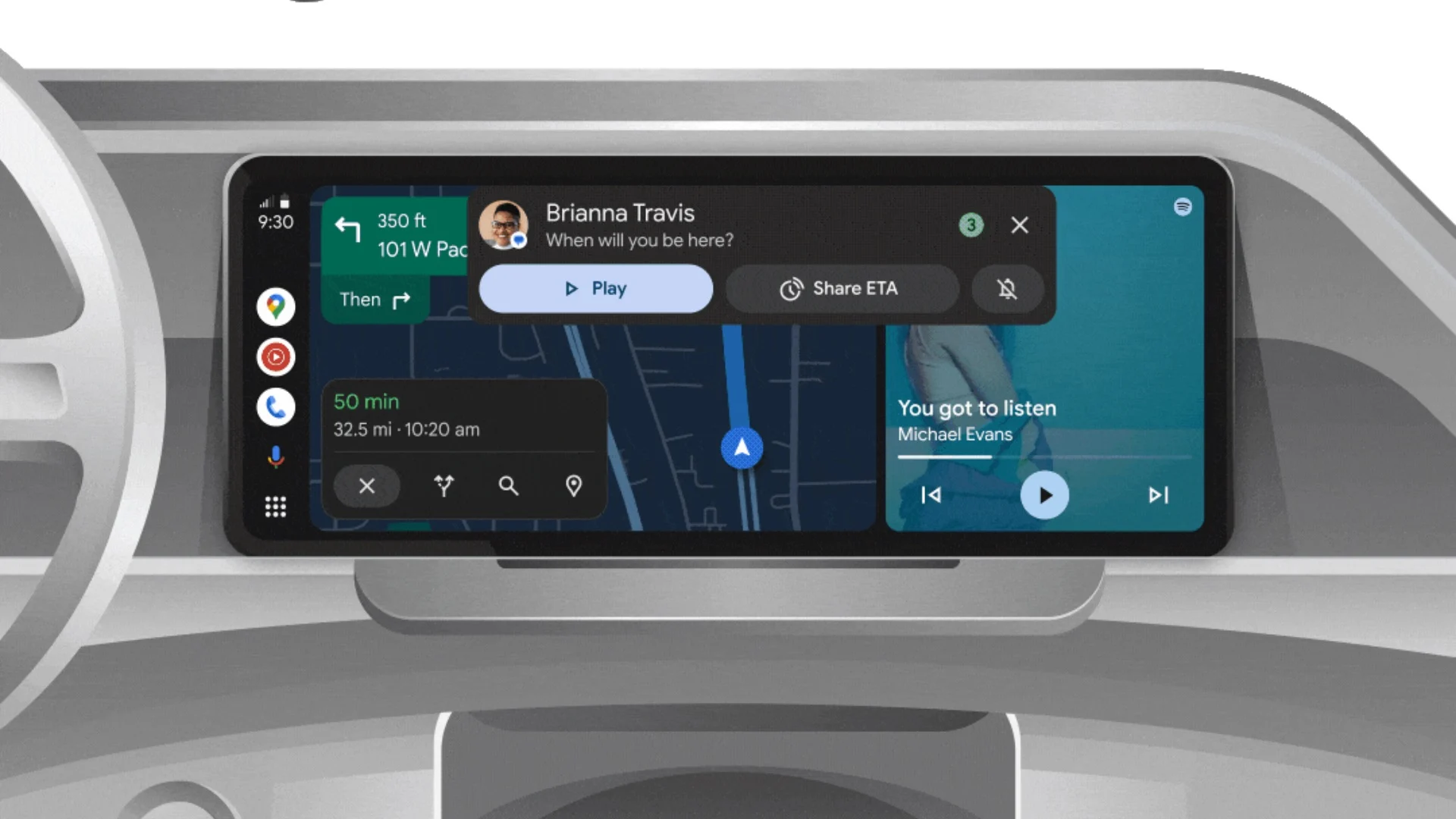
Android Auto is a helpful tool that lets you use your phone’s apps safely while driving. It connects your phone to your car’s screen, making it easier to use maps, music, and calls. One of the features many people like is the ability to change how Android Auto looks by switching between light and dark themes.
How to switch between light and dark themes
Android Auto offers two main themes: light and dark. The light theme uses brighter colors, which can make the screen easier to see during the day. The dark theme uses darker colors, which can be more comfortable for your eyes at night or in low light.
To change the theme, follow these steps:
- Open the Android Auto app on your phone.
- Go to the settings menu.
- Find the “Theme” option.
- Choose between “Light,” “Dark,” or “Set by car” (this lets your car decide the theme based on the time of day or your car’s settings).
Why themes matter
Using the right theme can make driving safer and more comfortable. The light theme is good for bright days, while the dark theme helps reduce glare at night. Having these options means you can pick what works best for you, making Android Auto easier to use in any condition.
In short, Android Auto’s theme options are simple to use and help you drive more safely by making the screen easy to see, no matter the time of day.
Google has just rolled out some exciting updates across its services and apps. Here’s a simple breakdown of what’s new and what it means for you.
Gemini 2.5 Pro is here
Google has launched Gemini 2.5 Pro, the latest version of its AI model. This upgrade brings smarter and faster responses, making it easier for users to get helpful answers. Gemini 2.5 Pro is now available in Google’s AI Studio and Vertex AI, so developers can build even better tools and apps using this technology.
Android 16 brings more customization
Android 16 is adding new ways to personalize your phone. One of the standout features is the ability to hide the clock on your lock screen, giving you a cleaner look if you want it. This is part of Google’s push to let users make their phones feel more unique. There’s also a new animation for the power button, making the experience smoother and more modern when you turn your phone on or off.
Google Messages removes the unsubscribe button
If you use Google Messages, you might notice that the “Unsubscribe” button is gone from some business messages. Google has removed this feature, so users now have to find other ways to stop unwanted texts. This change might make it a bit harder to manage spam, but Google hasn’t said why the option was removed.
What does this mean for you
These updates show that Google is focused on making its products smarter and more personal. Whether you’re using AI tools, customizing your phone, or managing your messages, you’ll see some changes that aim to improve your experience.
Google Keep is getting a fresh look with the new Material You design, making it more colorful and easier to use on Wear OS smartwatches. The update brings bigger buttons and clearer text, so you can quickly jot down notes or check your lists right from your wrist. This makes Google Keep more handy when you’re on the go and don’t want to pull out your phone.
On another front, Android Automotive is improving how apps show information while you drive. Instead of opening full apps, you’ll see simple cards on your car’s screen that give you important details at a glance.
These cards help keep your focus on the road by showing things like music controls, navigation updates, or reminders without distractions. This new card system is designed to work smoothly with apps like media players and navigation tools, making your driving experience safer and more convenient.
Together, these updates show Google’s effort to make its apps smarter and easier to use in everyday life, whether you’re walking around with your smartwatch or driving your car. The focus is on clear, simple designs that help you get things done quickly without hassle.
In short, Google Keep’s new look on Wear OS and the smart cards in Android Automotive are small but useful changes that make tech fit better into your daily routine.
-
 Apps2 years ago
Gboard Proofread feature will support selected text
-

 Apps2 years ago
Google Contacts app testing new Besties Widget
-
 AI2 years ago
Google Pixel 9 Pro may come with a complimentary one-year Gemini Advanced subscription
-
 Apps2 years ago
Google Maps lets you report traffic jams and accidents on Apple CarPlay, but not on Android Auto
-
 Apps2 years ago
Google working on a new video editing feature for its Photo app
-

 Apps2 years ago
Google Messages app will transform MMS chats into RCS
-
 News2 years ago
Samsung USA crafting One UI 6.1.1
-
 AI2 years ago
Gemini now answers questions on your locked Android phone